Setting Line and Page Breaks
When a page breaks so the heading is on one page and the text below it is on the next page, the writer must adjust the text so the heading stays with the text below it. Don’t use carriage returns (pressing Enter) to adjust the spacing. Instead, use the Line and Page Breaks option in Word. Follow this procedure to do so.
- Use your mouse to put your insertion point into the heading or other text you want to keep with the text that follows.
- Click on the arrow at the bottom right of the Paragraph section. You will see the Paragraph dialogue box.
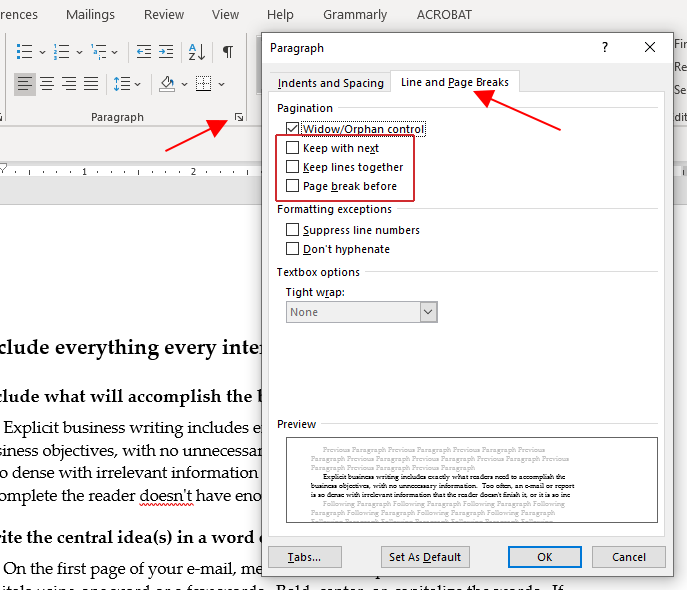
- Click on the Line and Page Breaks tab.
- Select the Keep with next option by clicking on the box next to it.
- Click on the Keep lines together option if your heading extends to two lines. You can also use this option if you have a paragraph or other text you want kept together when a page breaks.
- Click on the Page break before option if you want to force a page break before the text in which you have the insertion point.
- Click on OK to accept your selections.
 Download the Word file at this link and perform the functions indicated in the document: Download
When you have completed the tasks, send the Word file to assignments@businesswriting.com. Write a complete email with a salutation, reason for the email, reference to the attachment, and your name and contact information. Put “Lesson2 Line and Page Breaks” in the subject line.